Raiffeisen Pay Portal Setup (Production)
This is the production Raiffeisen Pay Portal. Every operation affects real system configuration!
Raiffeisen PAY Portal
The Raiffeisen PAY Portal is used for performing administrative tasks related to the API.
Production portal URL: https://payportal.raiffeisen.hu
Availability: 24/7 (Non-stop)
The production URL does NOT have the -pc suffix!
The following settings need to be completed on the portal to set up the API connection:
- Create New Users
- Set permissions on the permission editing screen
- Extract credentials (depending on the product)
System Administrator Activation
After creating the Raiffeisen Pay access, the person designated in the system administrator role receives an SMS activation code to their phone number (the phone number provided to and registered with the bank). This must be activated. On the https://payportal.raiffeisen.hu page, click the Activate menu, enter the Direct ID and the activation code received by SMS. After activation, the login password can be set.
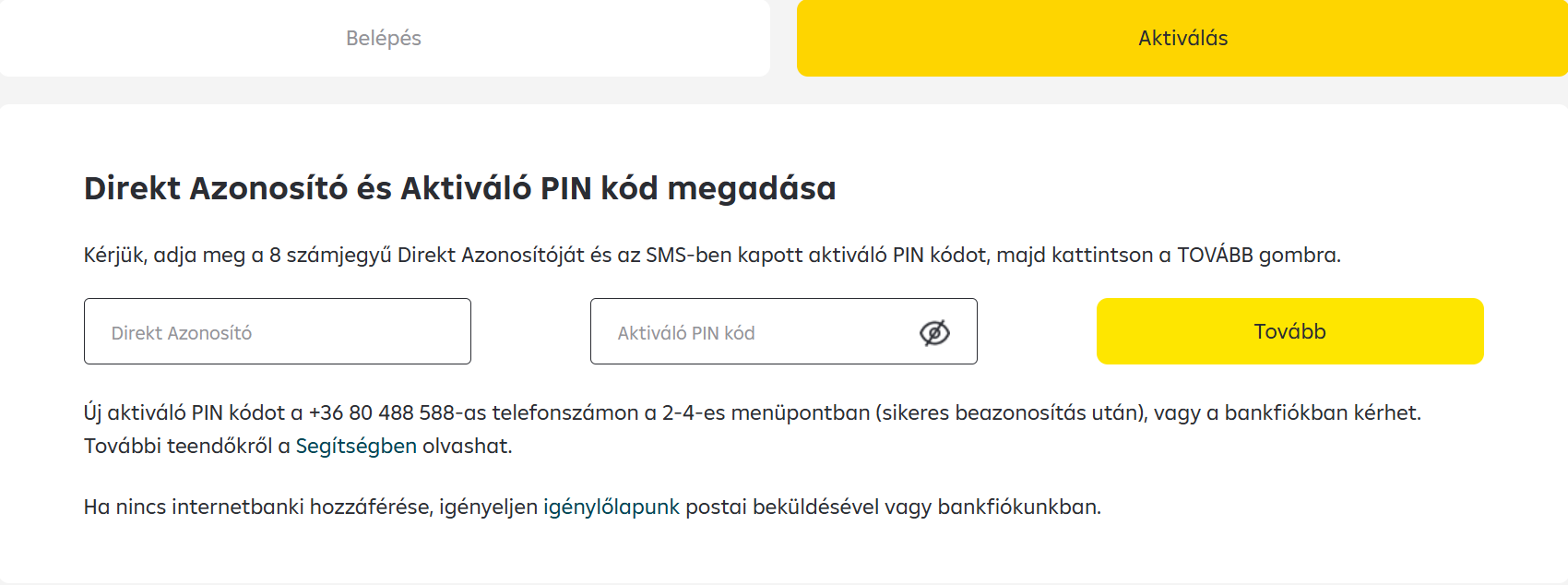
Receiving SMS Code
In the production environment, you will receive a real SMS to the system administrator's registered phone number during Raiffeisen Pay Portal operations.
The SMS code is automatically sent after entering the password for every operation that requires approval (login, signing an order).
SMS Code Handling
SMS code validity: 5 minutes
Resend: Via the Request new code button on the login screen
SMS delay:
- Normally the SMS arrives within 30-60 seconds
- If it doesn't arrive within 2 minutes, contact customer support
24/7 Support:
- Email: premiumapi_support@raiffeisen.hu
- Phone: +36 80 488 588 (RaiffeisenDirekt menu 3.1)
Every operation performed on the RPP portal must be signed with a password + SMS code combination. Before every operation, the password must be entered again, after which a new SMS code will be sent.
Creating a New User
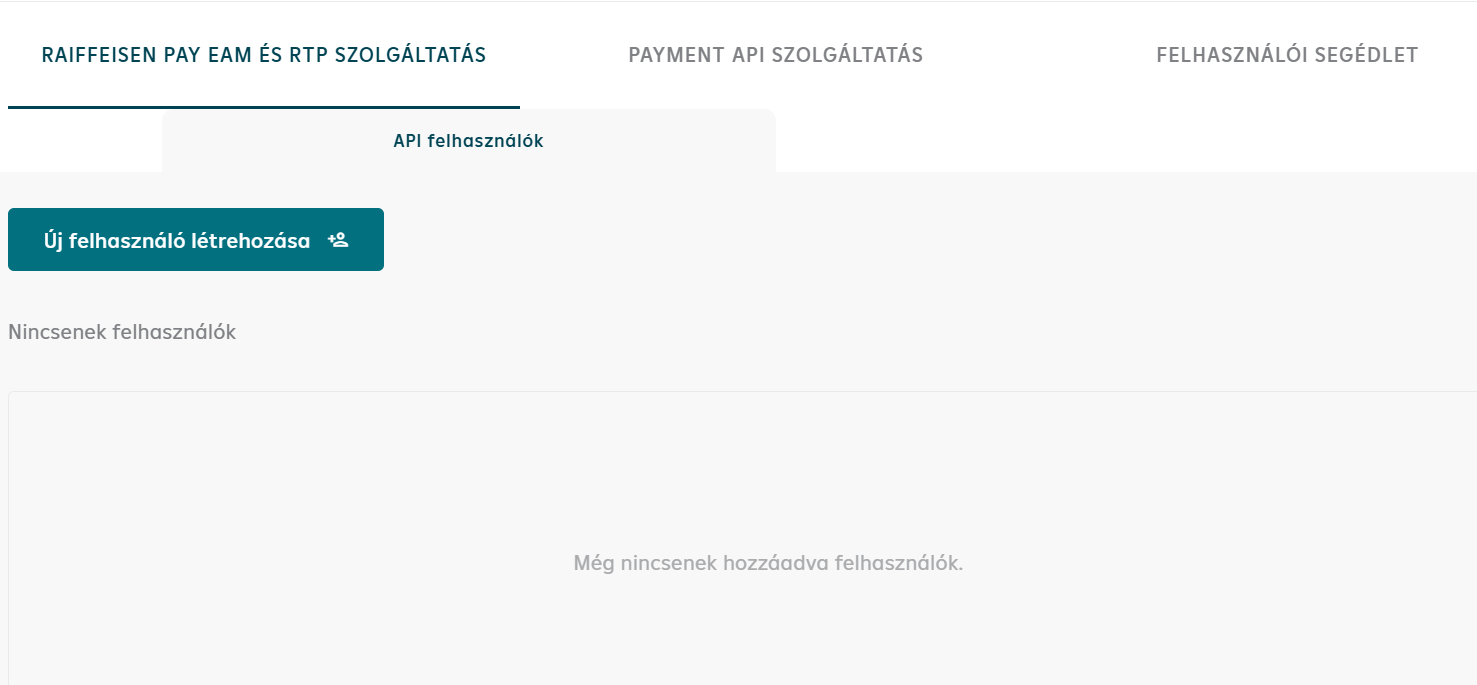
On the portal, click the Create New User button on the Raiffeisen PAY EAM and RTP service tab. The API user's name can be freely specified.
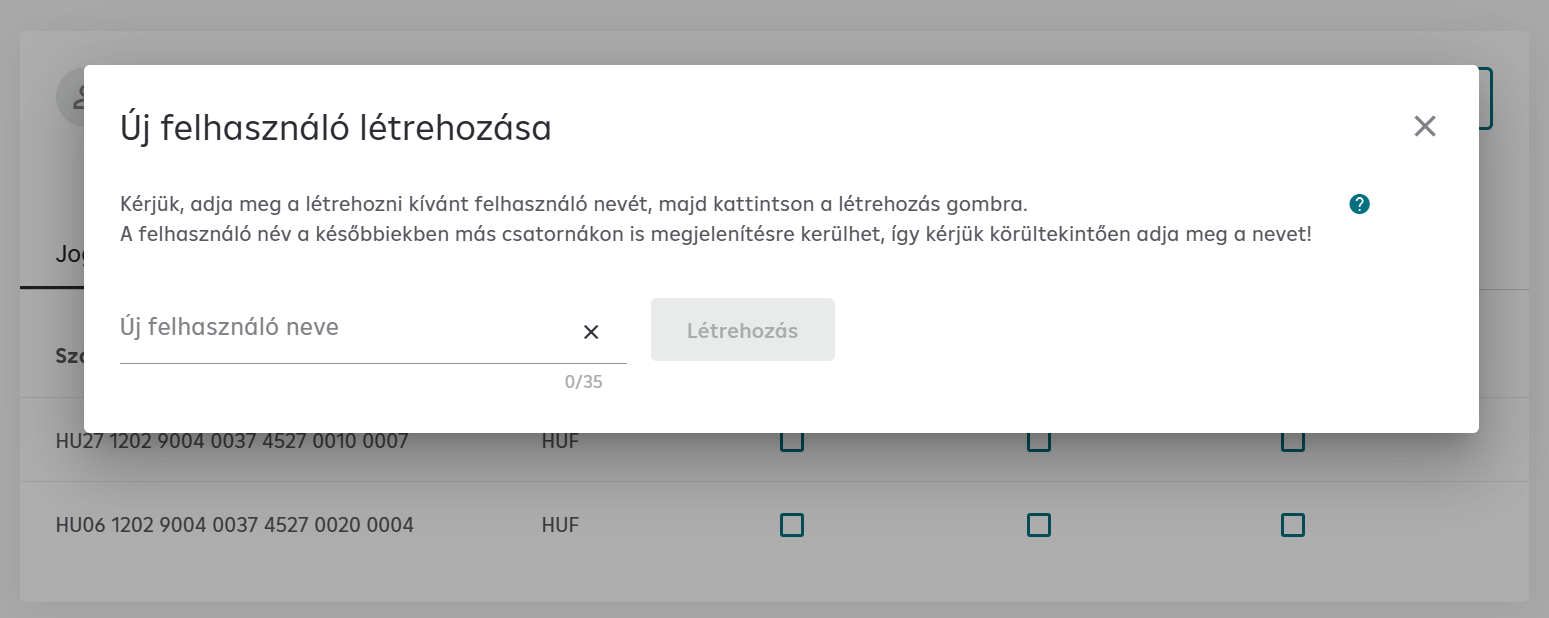
First, the user's name must be entered. The username may appear in various banking applications for transactions, so care should be taken when specifying it.
Applicable characters:
AÁBCDEÉFGHIÍJKLMNOÓÖŐPQRSTUÚÜŰVWXYZ aábcdeéfghiíjklmnoóöőpqrstuúüűvwxyz 1234567890 ]#$%&()+,-./;:?@_! Space
The username will appear on transactions (e.g. on bank account statements). Use a meaningful business name (e.g. "CompanyName API", "Webshop Gateway").
Setting Permissions
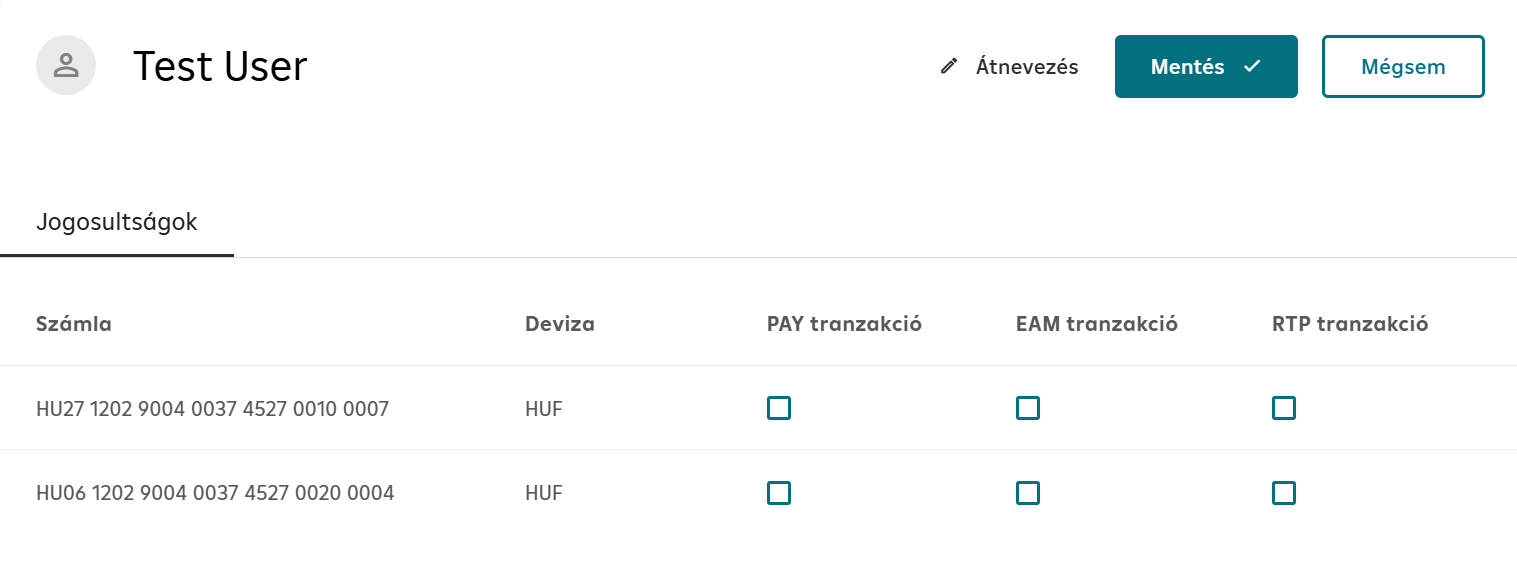
Next, the account must be selected and the appropriate permissions must be checked for the product to be used, then click the Save button.
In the production environment, a real bank account must be selected! Every transaction will appear on this account.
For EAM transactions, check the EAM transaction column.
For Payment Request, check the RTP transaction column.
For Payment API, Statement API, Balance API, check the PAY transaction column.
For OFO, check both the EAM transaction and RTP transaction columns.
Finally, click the Save button.
Signing the Order
The order must be signed with a password + SMS combination. The SMS code arrives via a real SMS to the registered phone number.
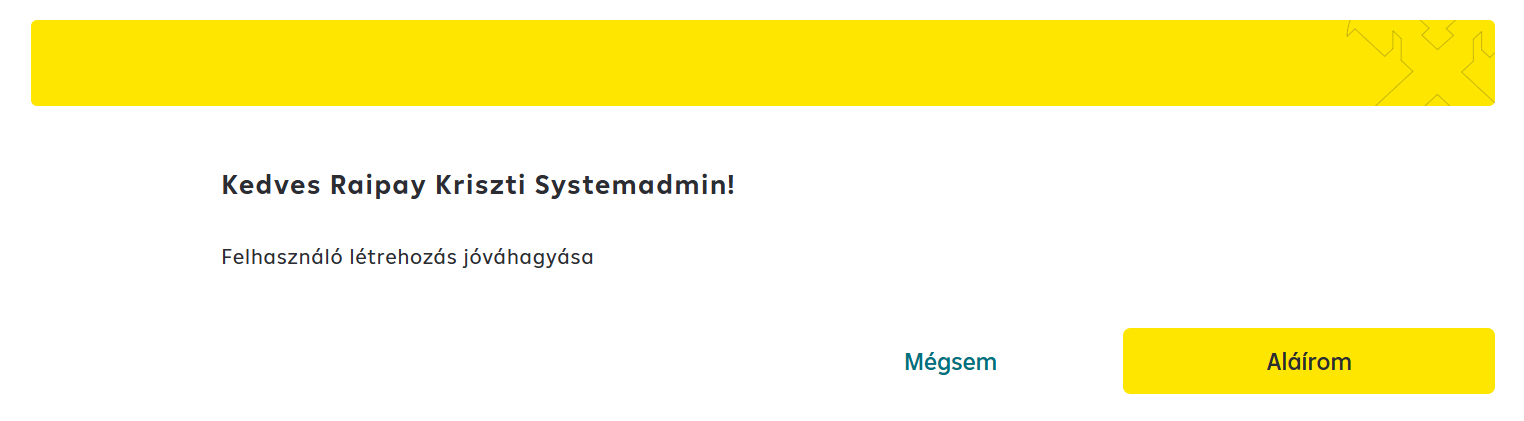
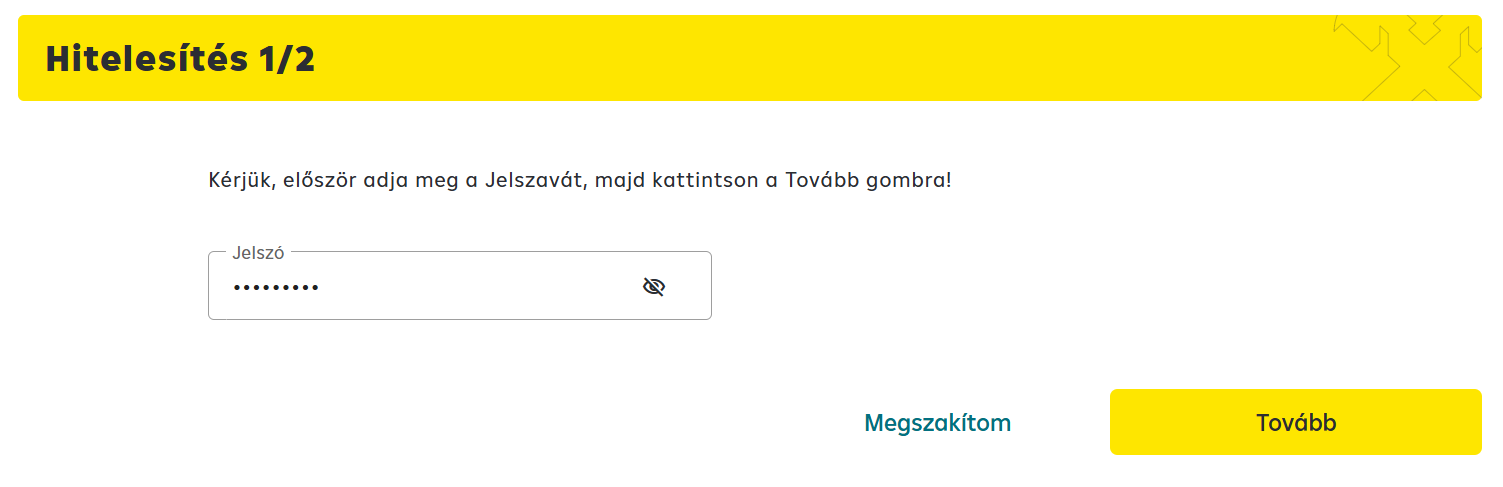
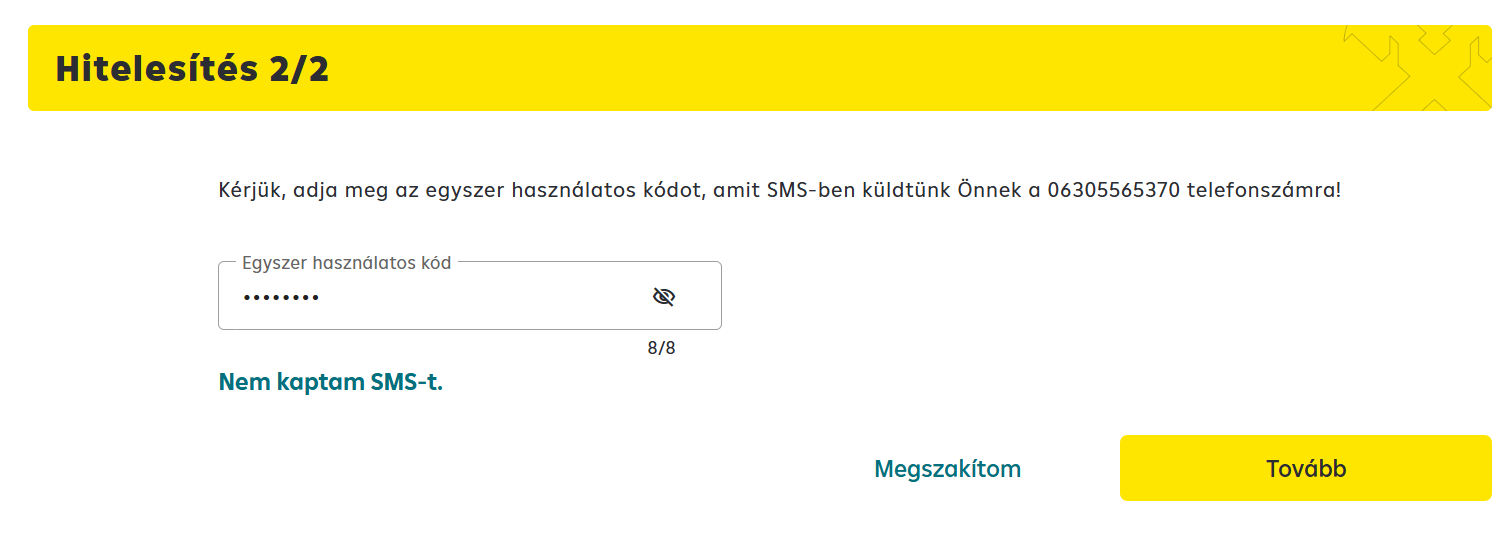
The next step is credential extraction.
Payment API, Statement API, Balance API, EAM, Payment Request
These products use CSR/JWT-based authentication. The next step is:
CSR/JWT authentication setup (production) →
After uploading the CSR, the KID (Key ID) can be extracted from the RPP portal, which is used for JWT token generation.
A separate production certificate must be generated for the production environment! The test environment certificate CANNOT be used in production.
Online Payment Page
The Online Payment Page uses HMAC-based authentication. The next step is:
HMAC authentication setup (production) →
NEVER commit the API key or HMAC secret to a git repository! Use a secrets manager (AWS Secrets Manager, Azure Key Vault, HashiCorp Vault).