Raiffeisen Pay Portal Kafka User Creation
Raiffeisen PAY Portal
The Raiffeisen PAY Portal is used for performing administrative tasks related to the API.
Production URL: https://payportal.raiffeisen.hu
The following steps are required to create the user:
- Log in to the Raiffeisen Pay Portal
- Create a Kafka user
- Sign the creation
System Administrator Activation
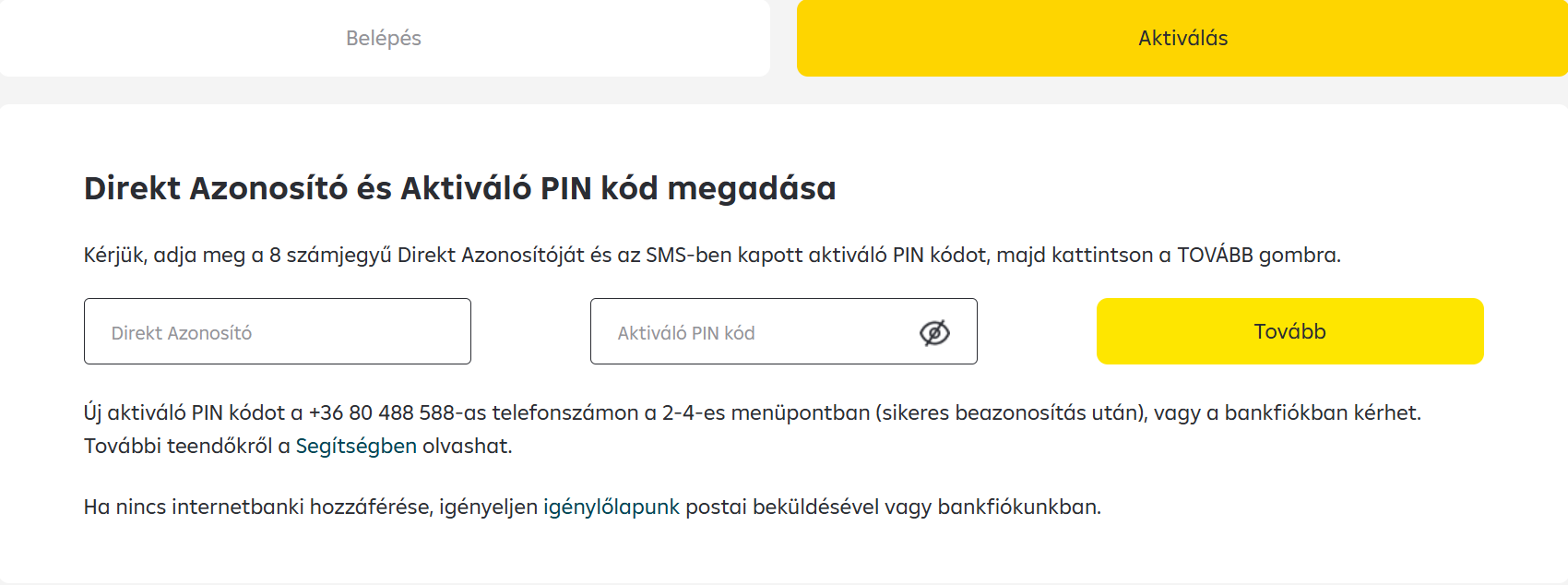
After creating the Raiffeisen Pay access, the person designated in the system administrator role receives an SMS activation code to their phone number (the phone number provided to and registered with the bank). This must be activated. On the https://payportal.raiffeisen.hu page, click the Activate menu, enter the Direct ID and the activation code received by SMS. After activation, the login password can be set.
Receiving SMS Code
:::warning Real SMS In the production environment, during Raiffeisen Pay Portal operations you will receive a real SMS to the system administrator's registered phone number. :::
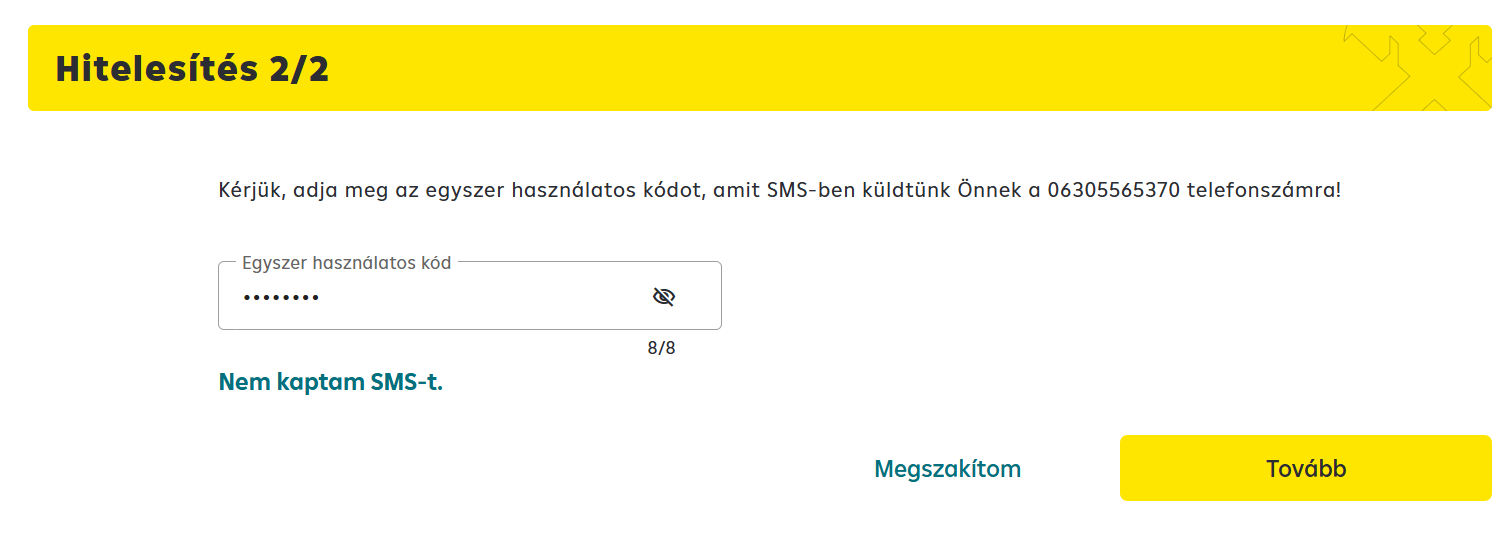
The SMS code is automatically sent after entering the password for every operation that requires approval (login, signing an order).
SMS Code Handling
SMS code validity: 5 minutes
Resend: Via the Request new code button on the login screen
SMS delay:
- Normally the SMS arrives within 30-60 seconds
- If it doesn't arrive within 2 minutes, contact customer support
24/7 Support:
- Email: premiumapi_support@raiffeisen.hu
- Phone: +36 80 488 588 (RaiffeisenDirekt menu 3.1)
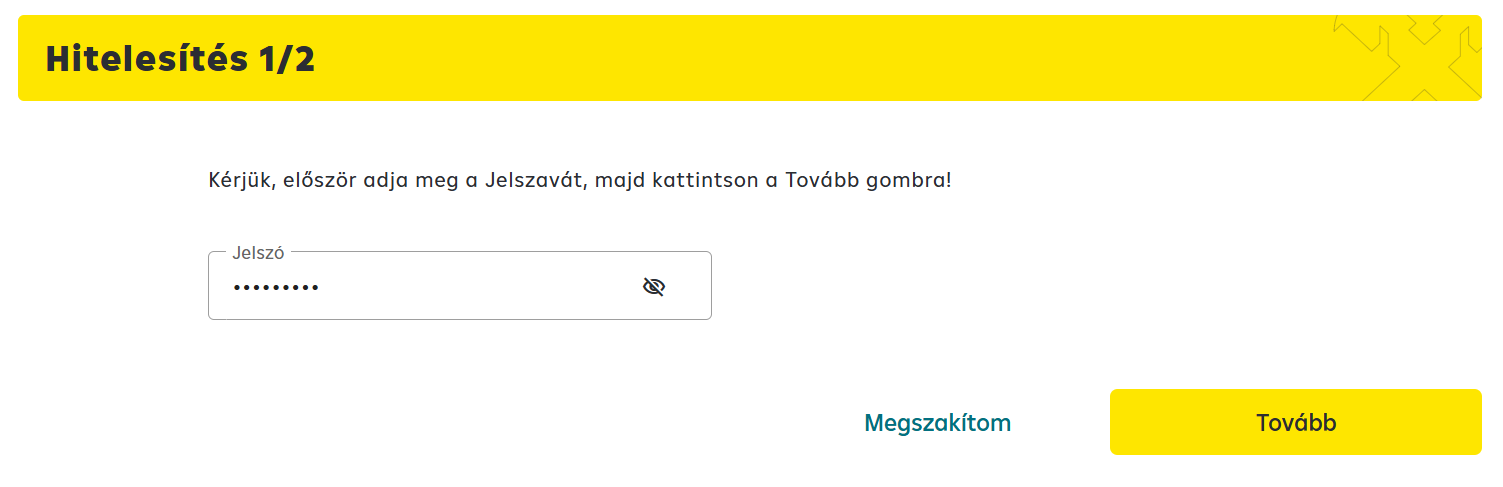
:::tip Important Every operation performed on the RPP portal must be signed with a password + SMS code combination. Before every operation, the password must be entered again, after which a new SMS code will be sent. :::
Creating a new Kafka user
On the portal, navigate to the Notification Services tab within the Payment API service tab. Then click the Create Kafka user button.
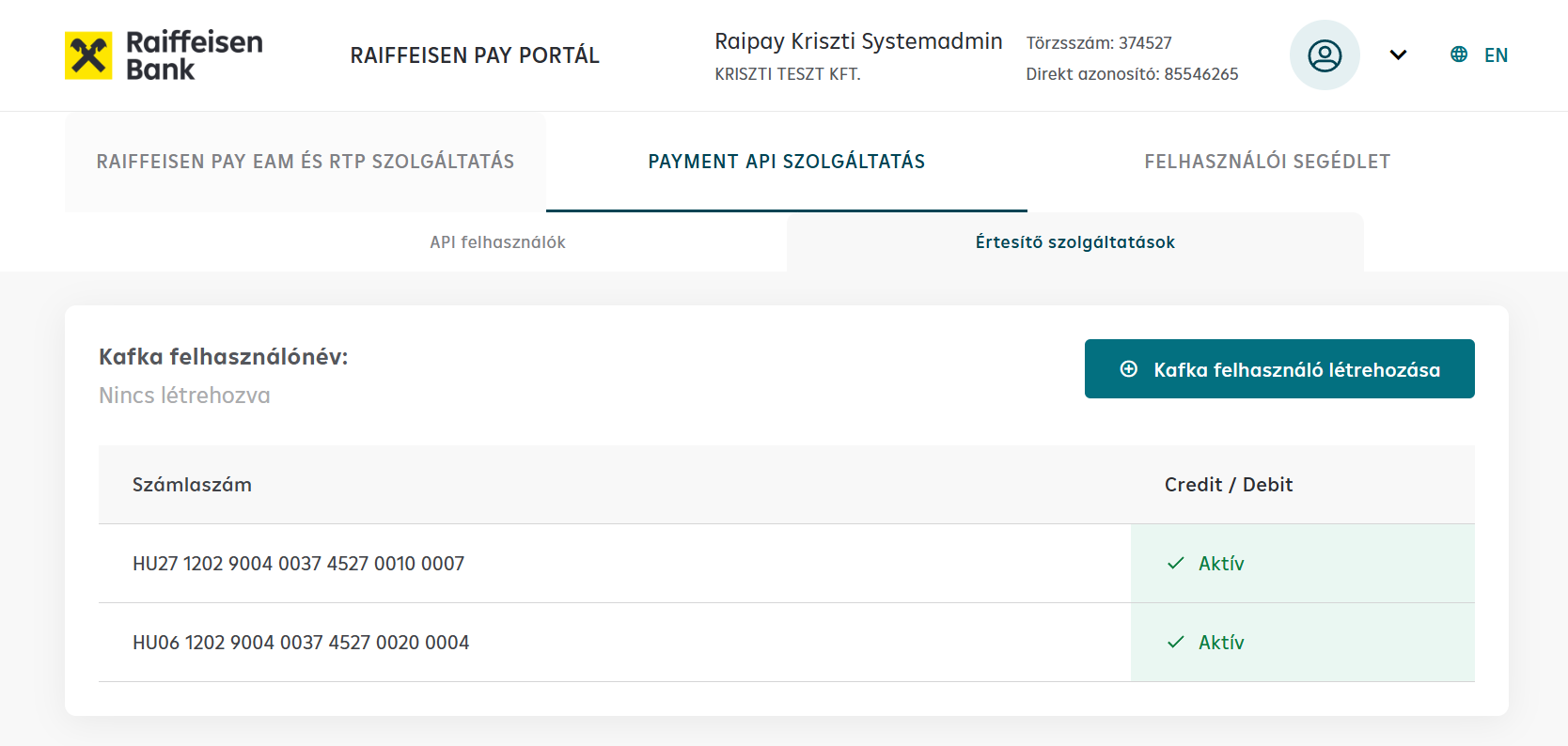
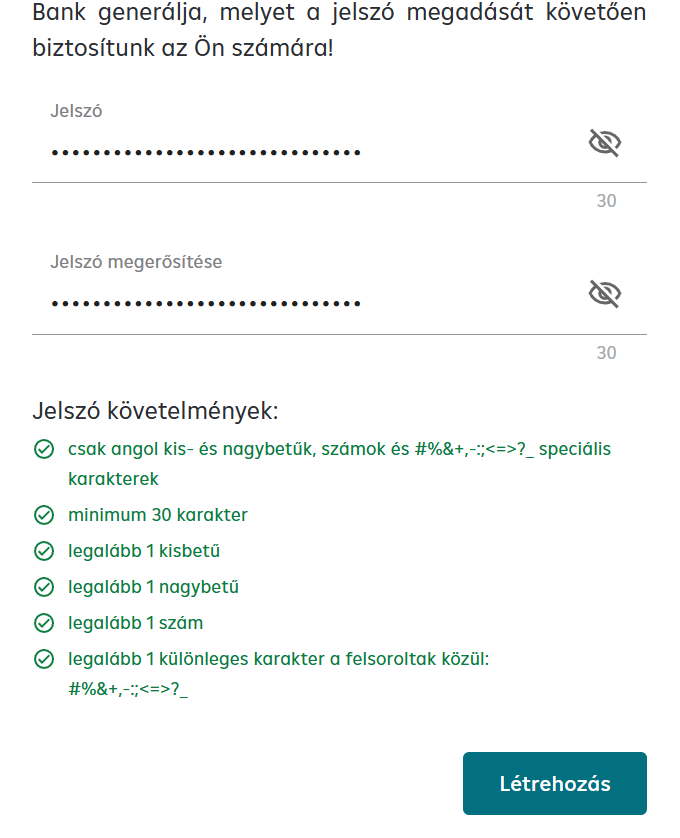
The username is generated by the bank, so only the password needs to be entered and confirmed. Pay attention to the password rules and do not use this password elsewhere.
Click the Create button at the bottom of the pop-up window.
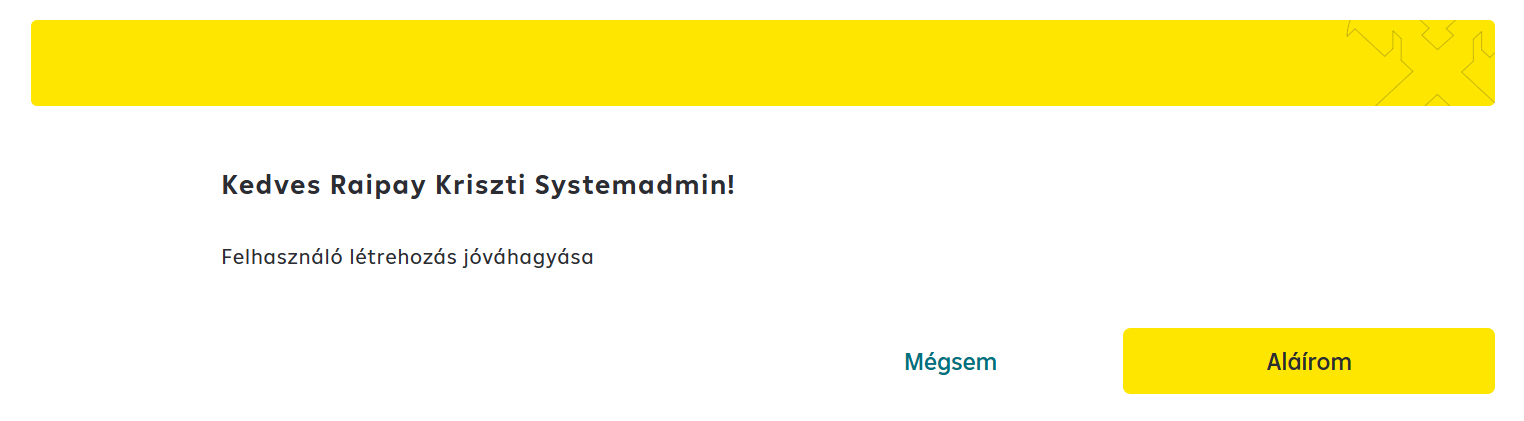
Signing the creation
The creation must be signed with password + SMS combination.
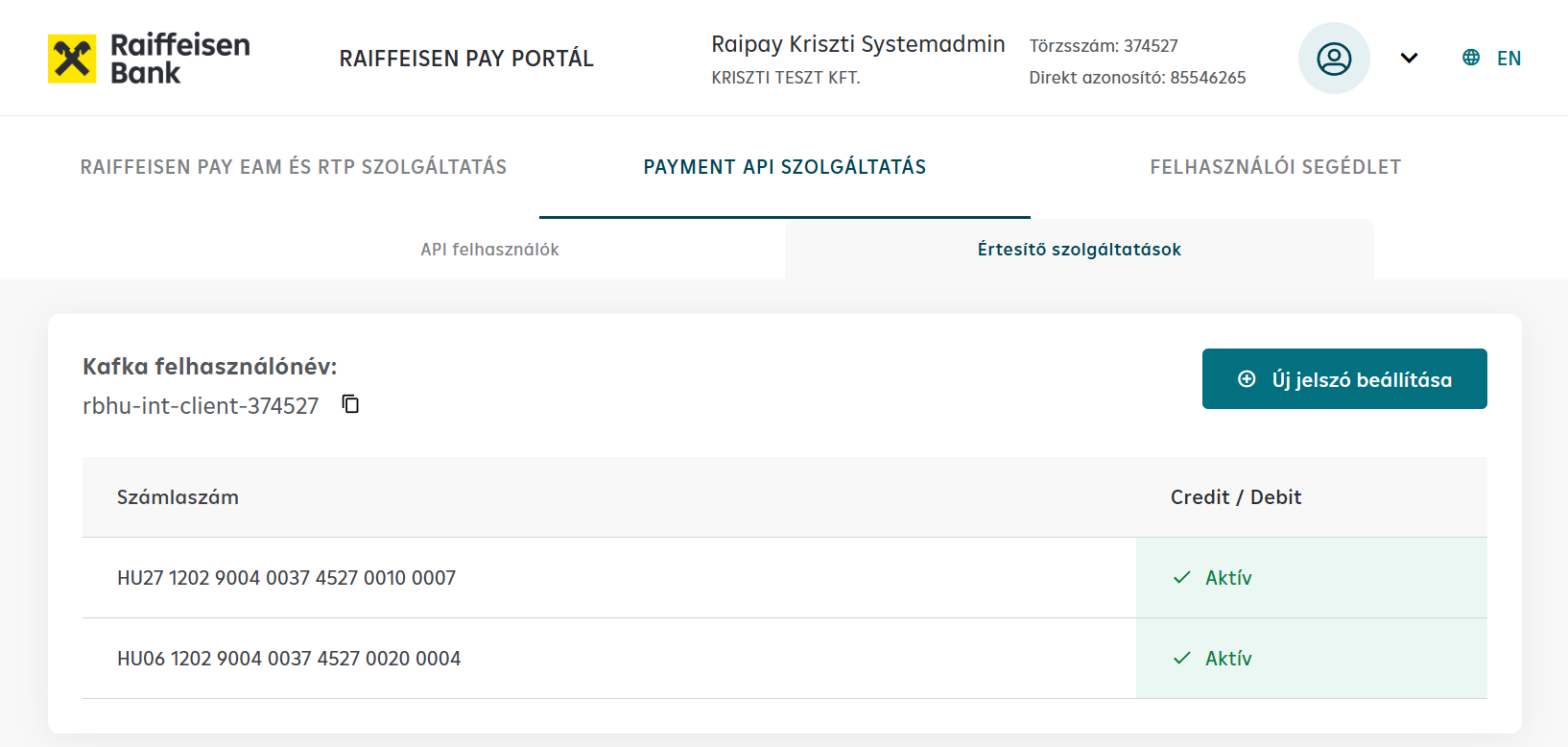
After signing, the username required to use the service is displayed. Next to the accounts listed below it, you can see whether the desired service is active for that account. At least 1 account with active status is required to create the Kafka user. There is also an option here to change the password.