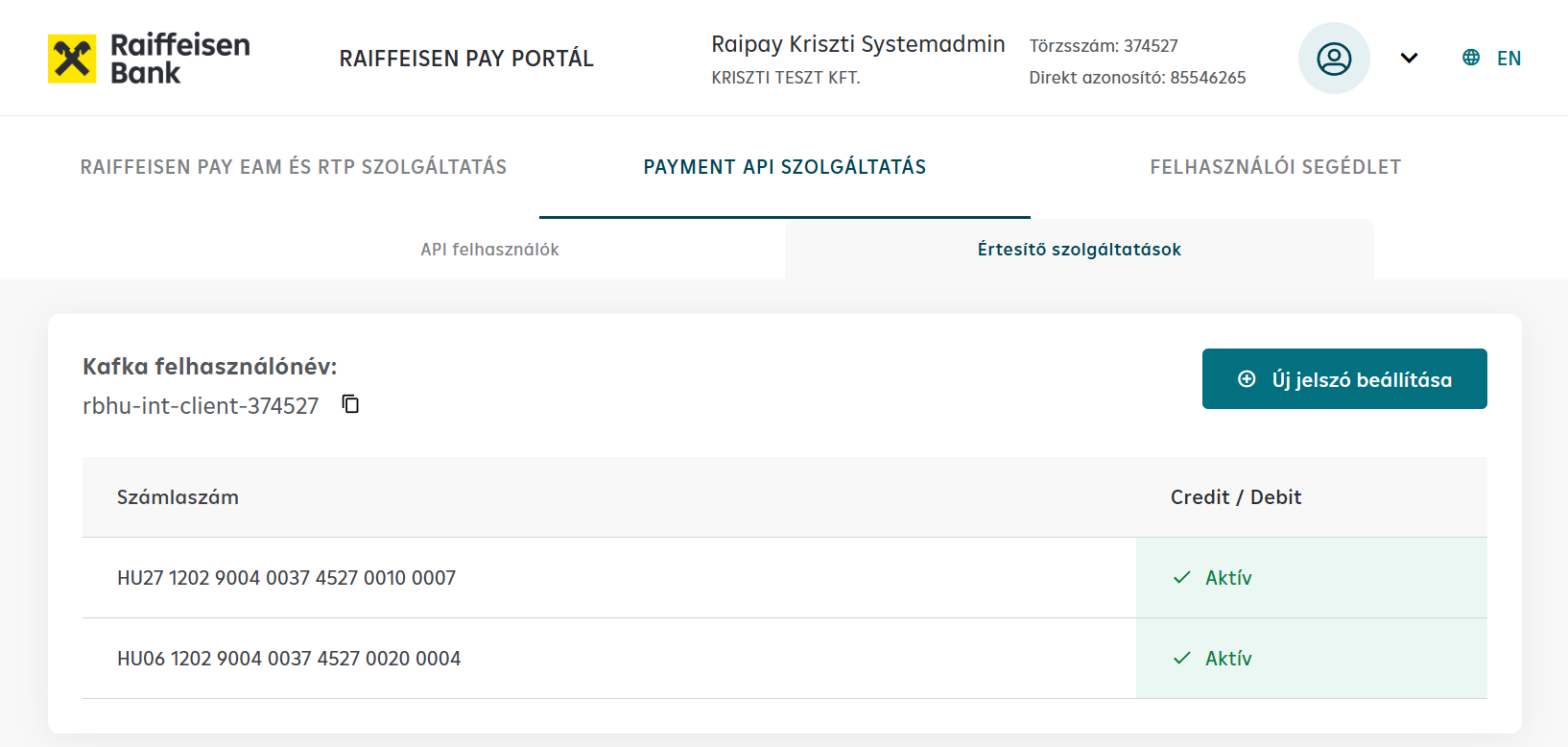
Raiffeisen Pay Portal Kafka User Creation
Raiffeisen PAY Portal
The Raiffeisen PAY Portal is used for performing administrative tasks related to the API.
Test URL: https://pay-portal-int-kubera.raiffeisen.hu
The following steps are required to create the user:
- Log in to the Raiffeisen Pay Portal
- Create a Kafka user
- Sign the creation
Login
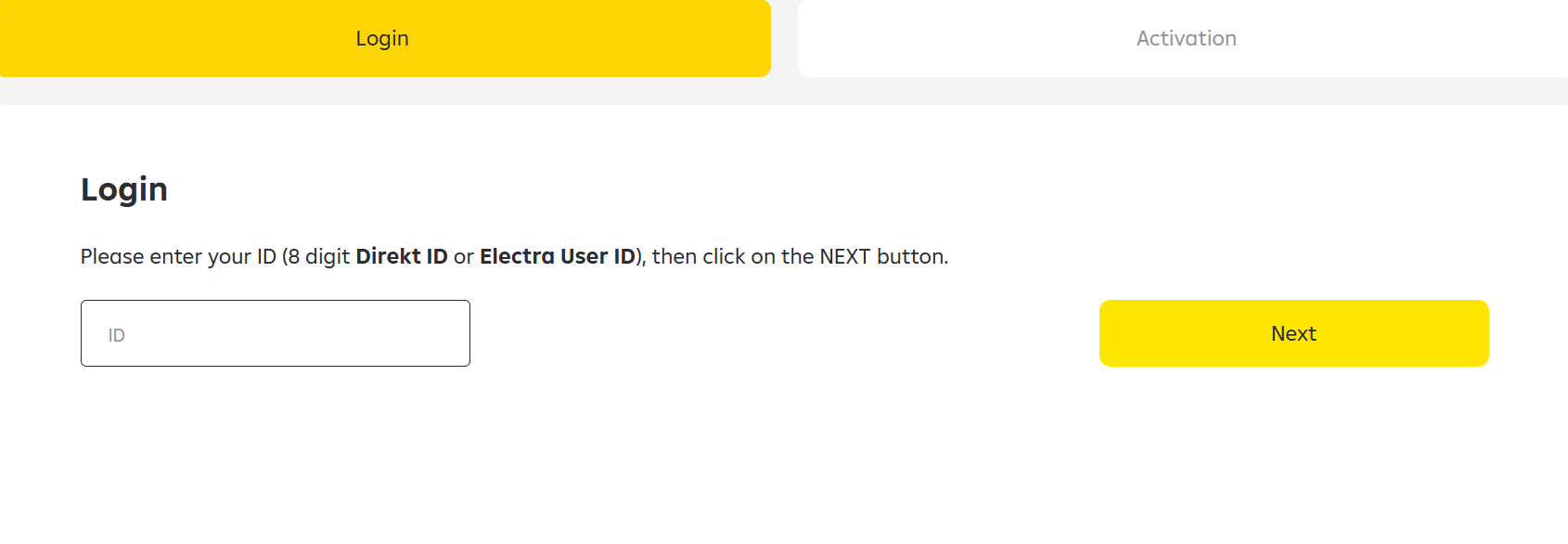
Click the Login menu, enter the Systemadmin test Direct ID and the password provided by the bank in the Excel spreadsheet. The SMS code is retrieved via API, which will be demonstrated in the next step.
Retrieving SMS Code via SMS API
During testing, the SMS OTP retrieval API must always be called for logins and approvals. It will always return the SMS OTP generated for the last operation, whether it is a login or an approval.
To call the endpoint, an API key (x-api-key) is required, along with two UUID headers: x-request-id and x-correlation-id.
:::tip Good to know The x-api-key is contained in the test user table provided by the bank. :::
Method: GET
Endpoint:
https://testing-tool-sms.huoapi-test.merlinplatform.cloud/smsotp/DIREKT_ID
The Systemadmin's Direct ID must be provided as a path parameter for the login.
CURL example
curl --location 'https://testing-tool-sms.huoapi-test.merlinplatform.cloud/smsotp/PASTE_DIREKT_ID_HERE' \
--header 'x-api-key: API_KEY_SECRET' \
--header 'x-correlation-id: 8863237b-6207-4117-ba79-0d415ff8d822' \
--header 'x-request-id: e4347b9d-bb06-4bb0-8c25-385b388f1cef'
{
    "response": {
        "otp": "13644883",
        "sms": "A belépéshez szükséges egyszer használatos kódja: 13644883 Raiffeisen Bank Zrt",
        "smstimestamp": "2026-01-29 10:02:54.00+00:00"
    }
}
:::tip Important The value in the OTP field is what needs to be copied into the SMS code input field on the RPP portal. Every operation performed on the RPP portal must be signed with a password + SMS code combination. After entering the password, the SMS code must always be retrieved again for each operation. :::
Creating a new Kafka user
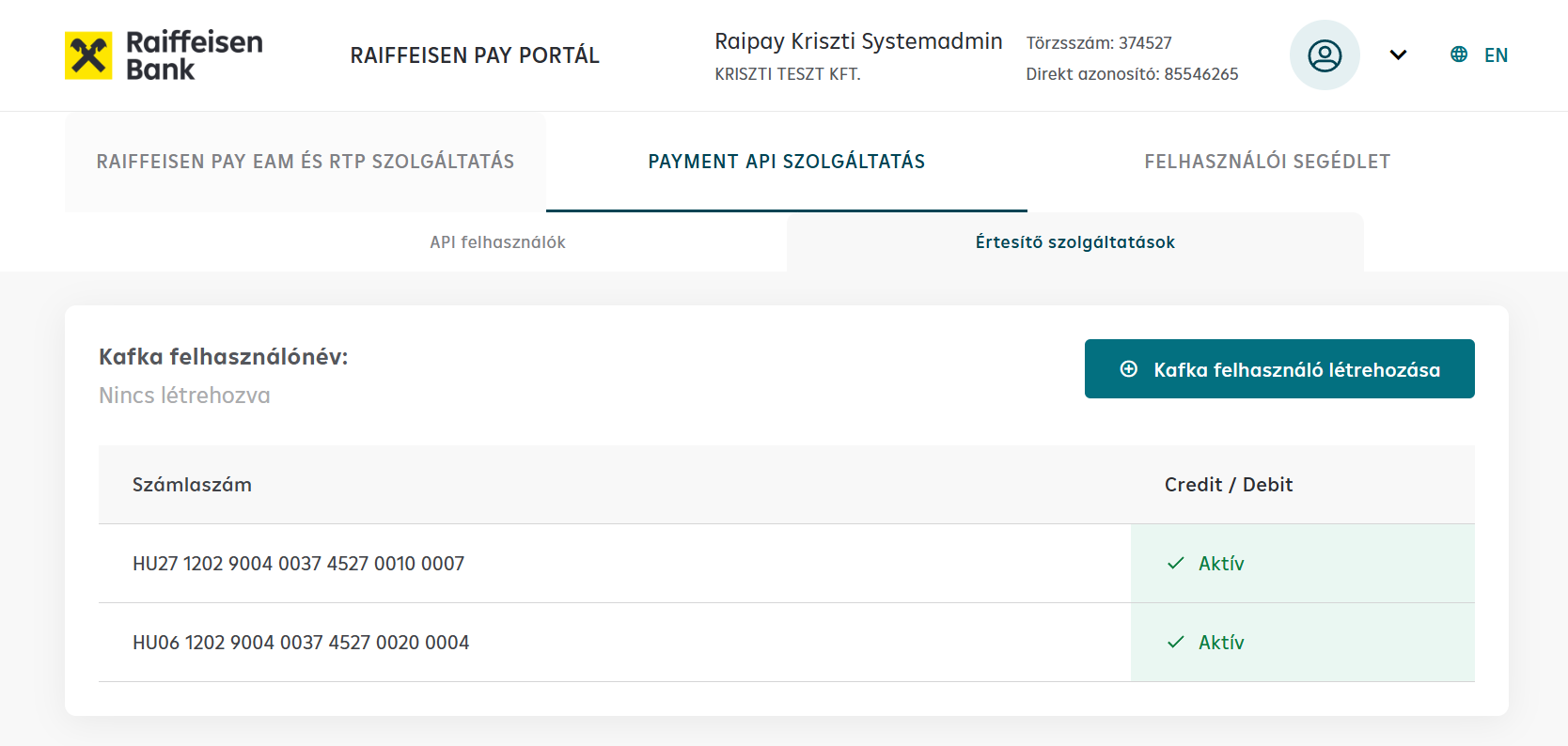
On the portal, navigate to the Notification Services tab within the Payment API service tab. Then click the Create Kafka user button.
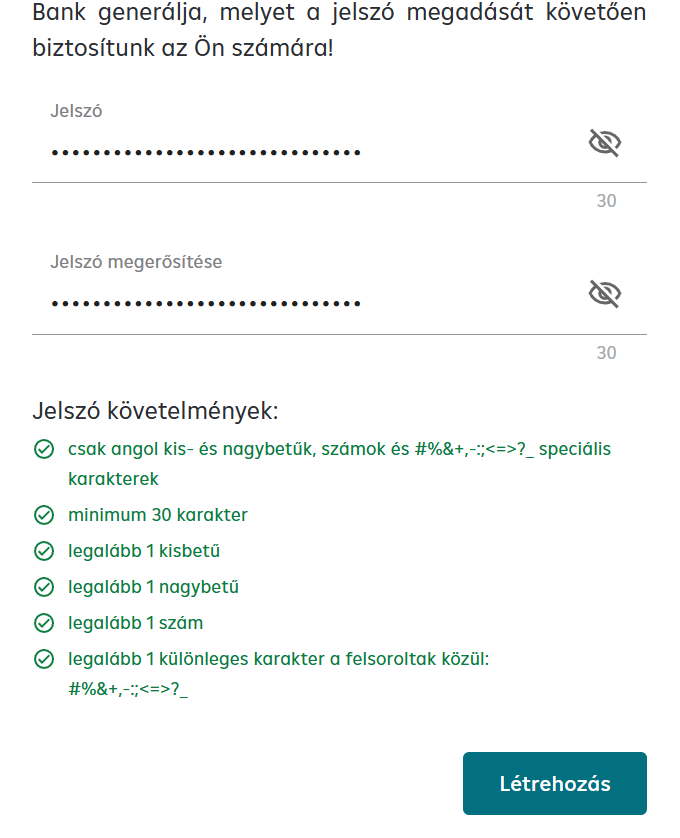
The username is generated by the bank, so only the password needs to be entered and confirmed. Pay attention to the password rules and do not use this password elsewhere.
Click the Create button at the bottom of the pop-up window.
Signing the creation
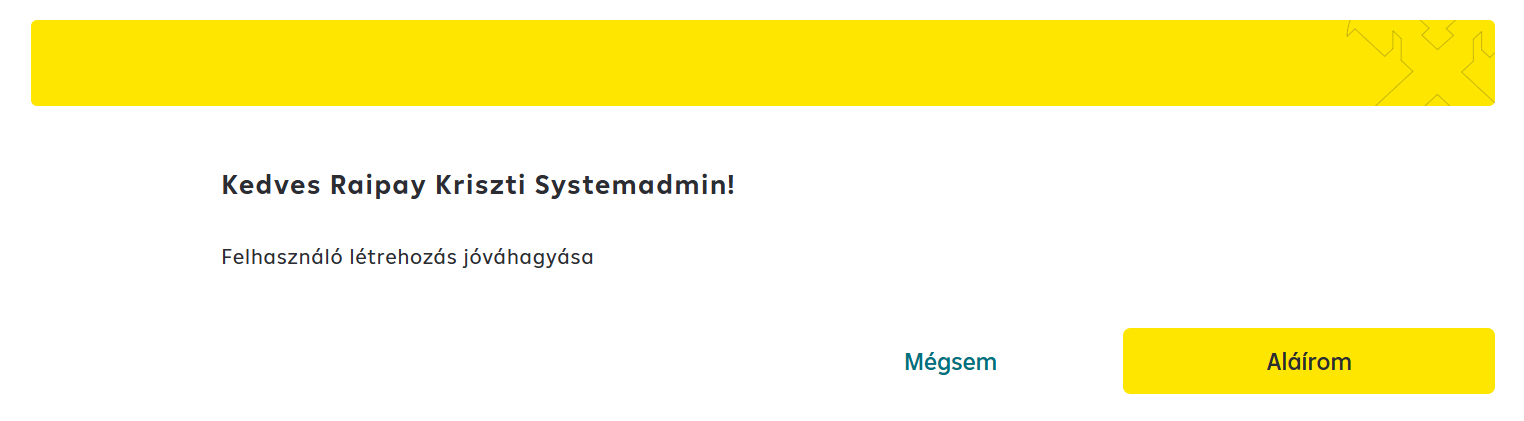
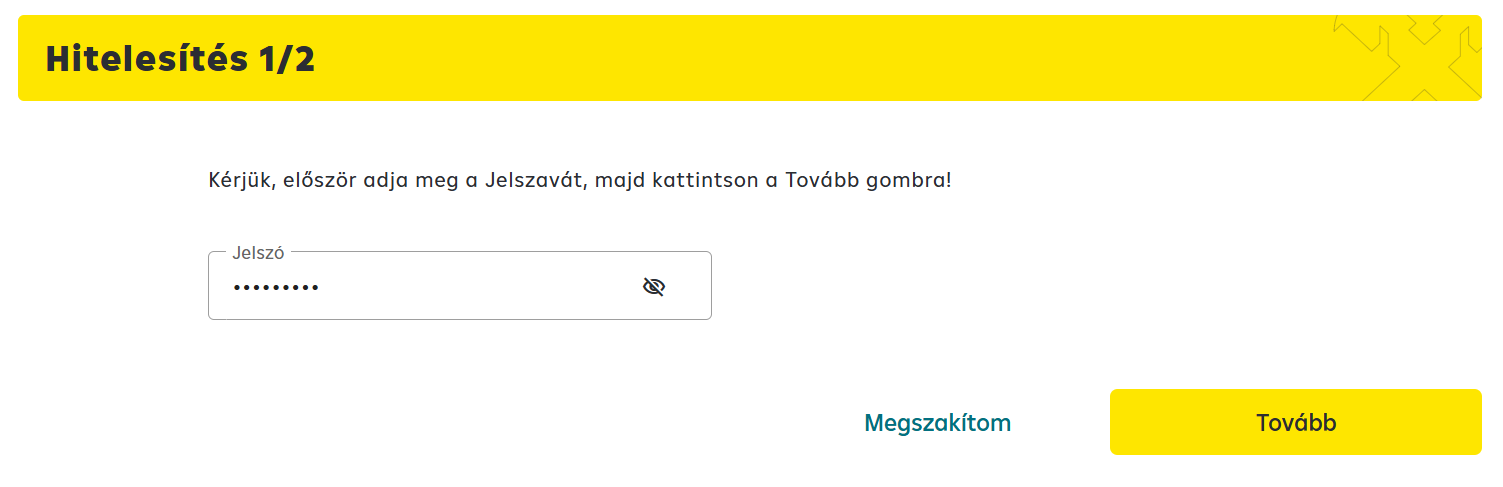
The creation must be signed with password + SMS combination.
After signing, the username required to use the service is displayed. Next to the accounts listed below it, you can see whether the desired service is active for that account. At least 1 account with active status is required to create the Kafka user. There is also an option here to change the password.